Shopfront Lens · Native app
Saved places & maps.The place stayswith the piece.
The jacket down the side street. The stall you meant to come back to. Save the place with your find, then open your map when you want another look. Keep the shop name, source type and price on the tag beside the item’s photos. Location capture is optional, and you can edit the details later.
See how it works
Available for iOS and Android.

Make it part of your day
From a good find to a place you remember.
Capture the find
Save an item while it is in front of you. With your phone’s permission and automatic location enabled, Lens can attach your location during capture. You can still save the item if you prefer to leave location off.
Give the place a name
Add the shop or stall name and choose a source type, such as a retail store, second-hand store or market. Record the asking price and its currency separately from the online estimate. Review or edit the place details whenever you need to.
Find your way back
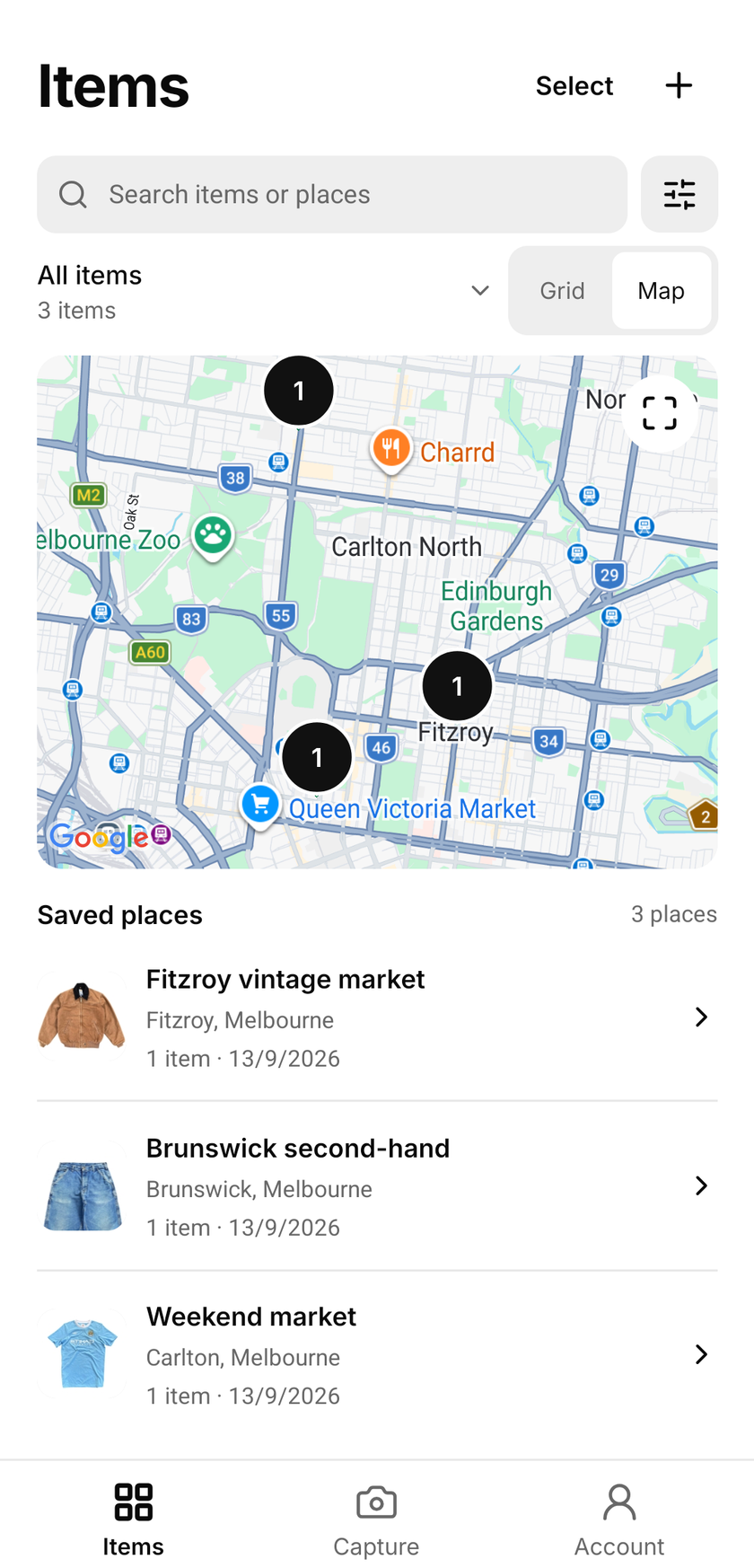
Switch your saved items to Map to see finds with coordinates. Open a saved place to revisit its items and use your maps app when you want directions. A saved pin is a reminder of a find; it does not confirm stock, opening hours or current prices.
Keep the context
More useful than a pin on its own.
- A name you recognise
- Save the shop, stall or event name alongside the item. Use a source type to distinguish retail stores, online finds, markets and more.
- The details worth keeping
- Keep the item’s photos, the price on the tag and its currency together. Add or correct the place details after capture.
- Location on your terms
- Automatic capture location is optional. Turn it off in Settings or change the phone permission. Lens does not track your location in the background.
A map of your finds.
Start with the items you chose to save. The map helps you revisit a shop from the weekend or connect a piece with the stall where you saw it. Search saved item and place names, or use date and source filters to narrow your library.
A find without coordinates can still keep its shop name, source details and price. It remains in your saved items even if there is no pin to show on the map. Online purchases can have useful source details too.
Share a place deliberately.
When you share a saved place, its location is part of the message. Review the preview and choose which of its items and optional prices to include before opening your phone’s share menu.
Sharing an individual item works differently: its location starts off and is included only if you select it. A shared message is a snapshot; it does not give someone access to your saved library.
Make it part of your day
For your kind of finding.
A weekend market
Keep a stall name with the jacket you liked. Revisit the saved details before deciding whether to go back.
A shop worth remembering
Save a retail or second-hand store with a piece you spotted. Keep the price you saw at the time with its currency.
A find for a friend
Share a saved place and selected items when someone else might want to take a look. Check the location in the preview first.
A few things to know
Saved places & maps.
Good questions.
Do I have to allow location access?
No. You can use saved items without granting location access. Automatic capture location is optional and can be turned off in Settings. You can add or edit place details later.
Does Lens track me in the background?
No. Automatic location is captured in the foreground when you capture an item, with permission. Lens does not build a background record of where you travel.
Why is a saved item missing from the map?
The map needs coordinates to place a pin. An item saved without coordinates can still appear in your item library with its name, source details and price. Check or edit the saved place details.
Are places backed up or synced to another phone?
No. Items, places and collections are saved on this device. There is no automatic backup or sync between phones, and signing out clears local saved data.
Can I use saved places in the browser?
Saved places and maps are available in the iOS and Android app. The browser tool currently offers photo-based price checks.
Start with a little curiosity
Check your next find for free.
200 free price checks per calendar month. Included on the Free plan with a registered account. Paid plans include higher native app allowances. Web and app allowances are separate and reset on the 1st of each month at midnight in Melbourne.
Shopfront Lens is available on the App Store and Google Play. The native app requires a Shopfront account; create one on the web, then sign in. You can also try photo-based price checks in your browser.
Read the Lens getting-started guide