Shopfront Lens · Native app
Measurement styles.Your measurements.Your signature style.
Turn measurements into a clear image buyers can use. Edit colours, lines, labels, fonts and branding, then save your theme to use again. Export a JPG or PNG for a marketplace listing, a message to a buyer or anywhere you share product details. Your measurements stay the same while the presentation becomes your own.
See how it works

Available for iOS and Android.
Make it part of your day
How do you create a measurement style?
Start with a preset
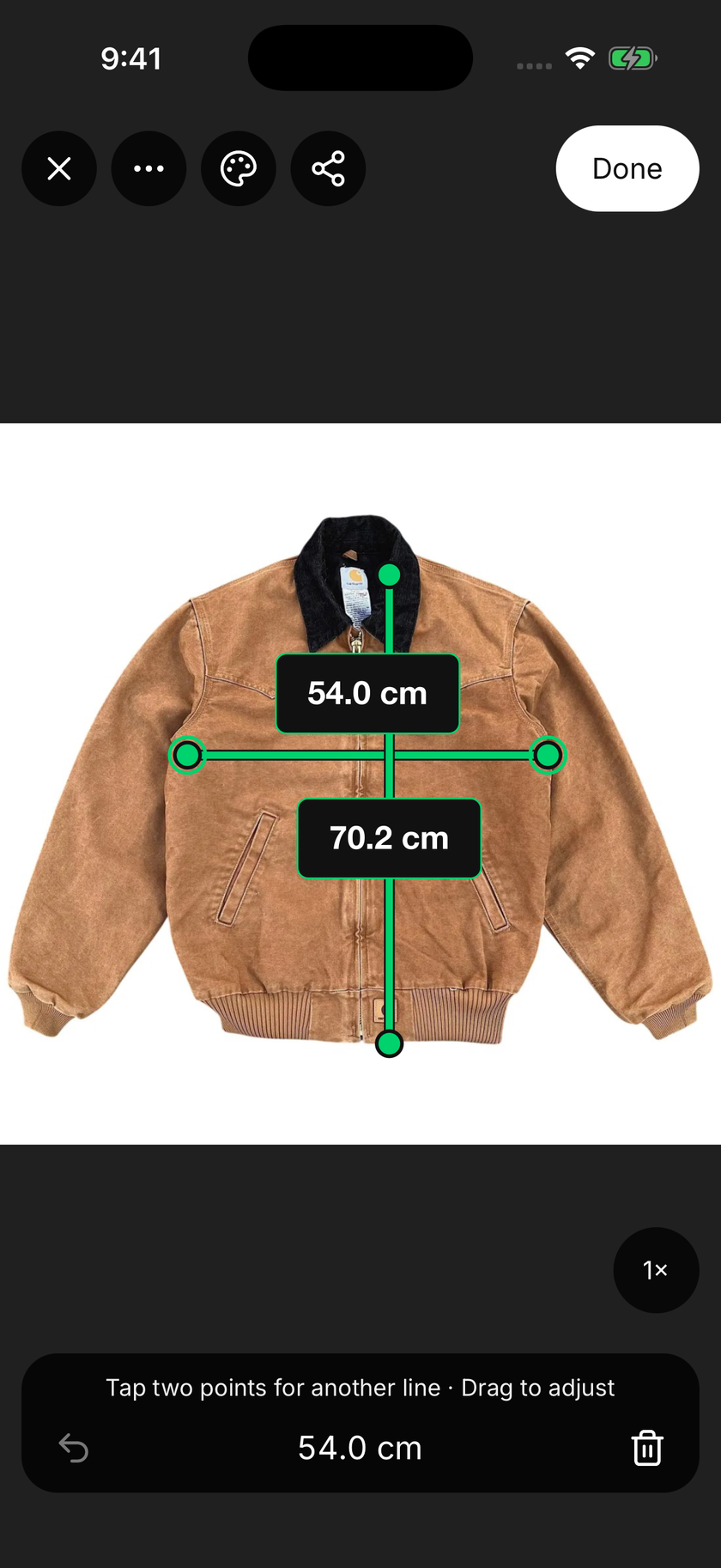
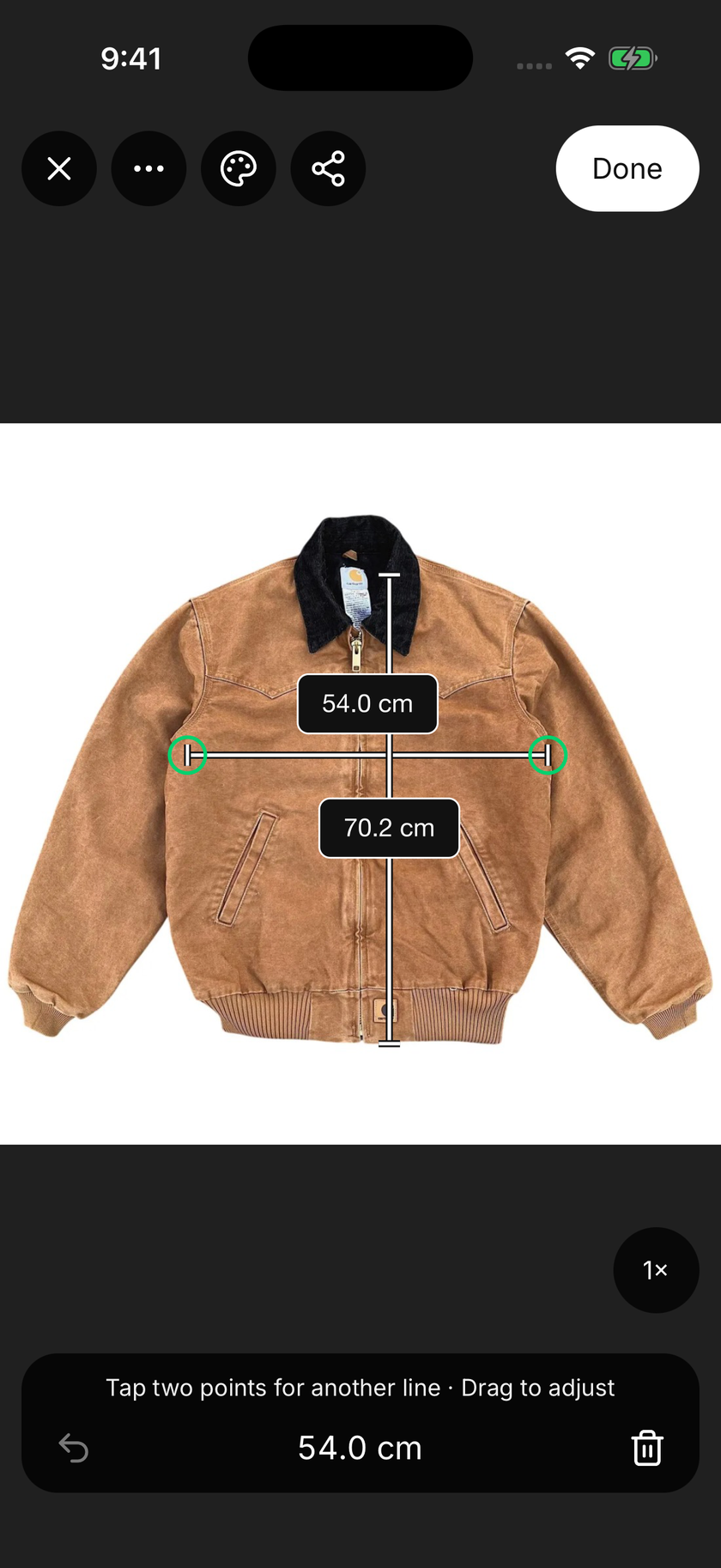
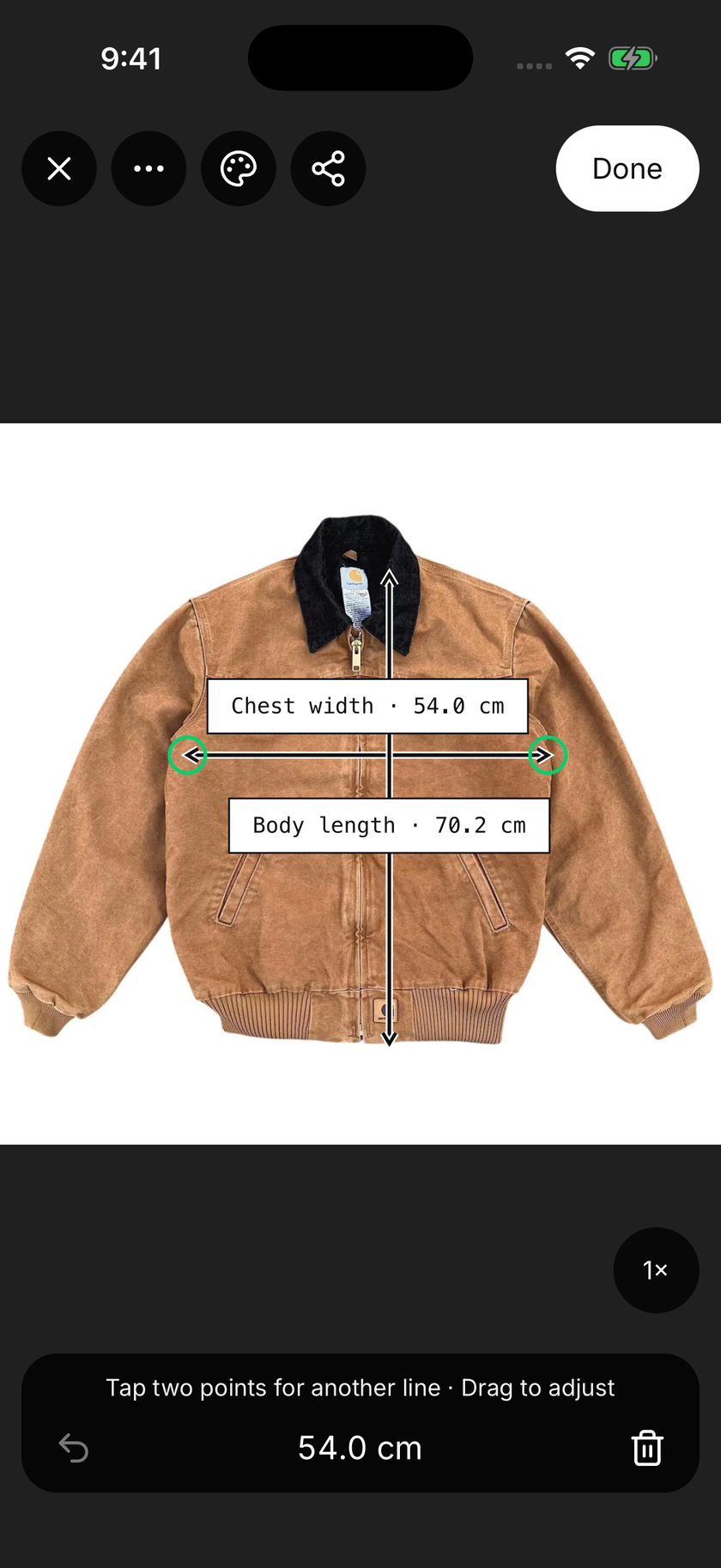
Choose Minimal, Technical, Bold or Classic as a starting point. Each preset gives the same photo a different treatment, from quiet lines to stronger labels. The preview below shows all four using the same example item.
Adjust the details
Choose the colours, line treatment and type that work with your photo. Edit the labels and add branding when it is useful. Keep the garment and the measurement endpoints easy to see as you make changes.
Save it for next time
Give your style a name and save it to use again. You can set a saved style as the default for new photos in the current workspace. Reusing a look saves you from adjusting every image from the beginning.
Make it yours
Same measurements.
Your signature style.
Make the details easy to read and recognisably yours. Edit colours, lines, labels, fonts and branding, then save a reusable theme for your next item. Export the finished photo as JPG or PNG to add to a marketplace listing, send to a buyer or share elsewhere.
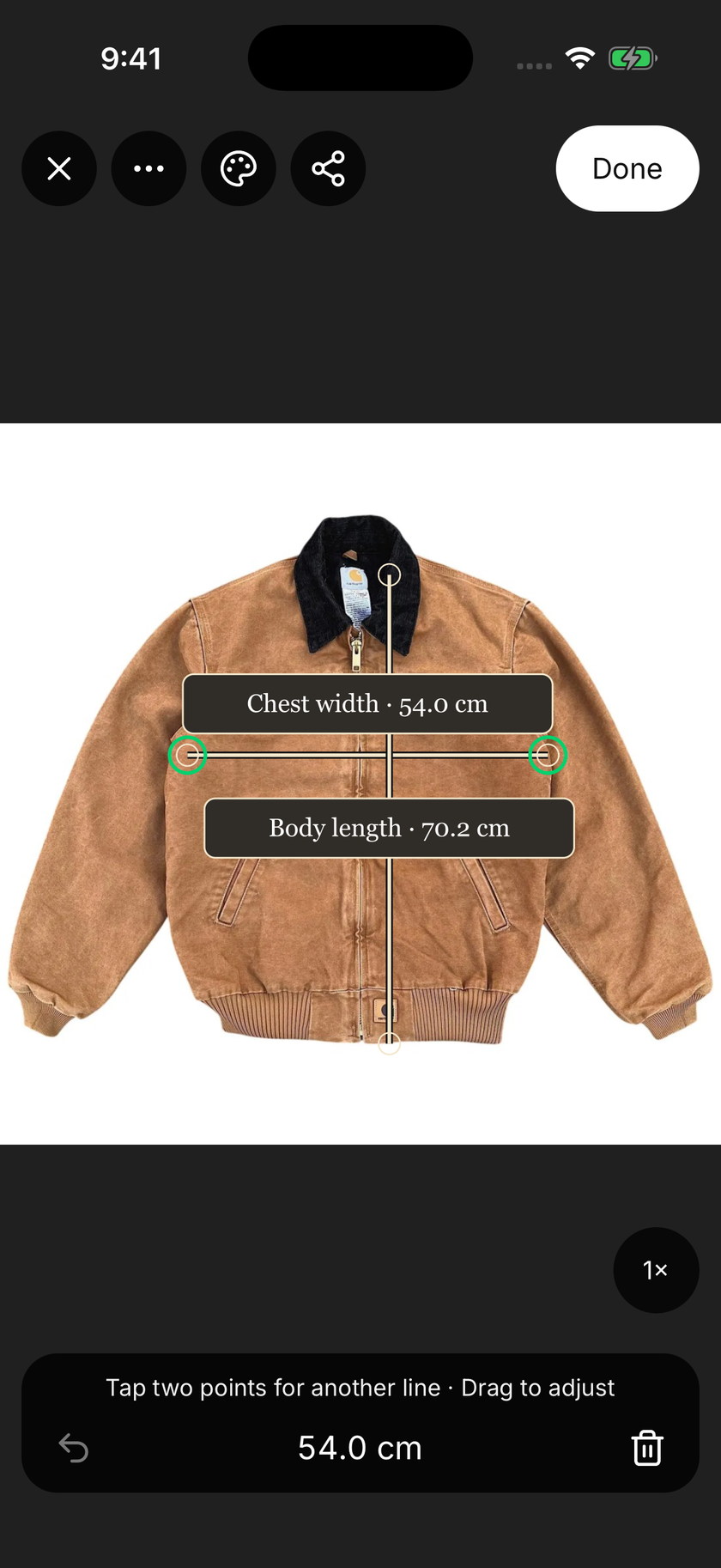
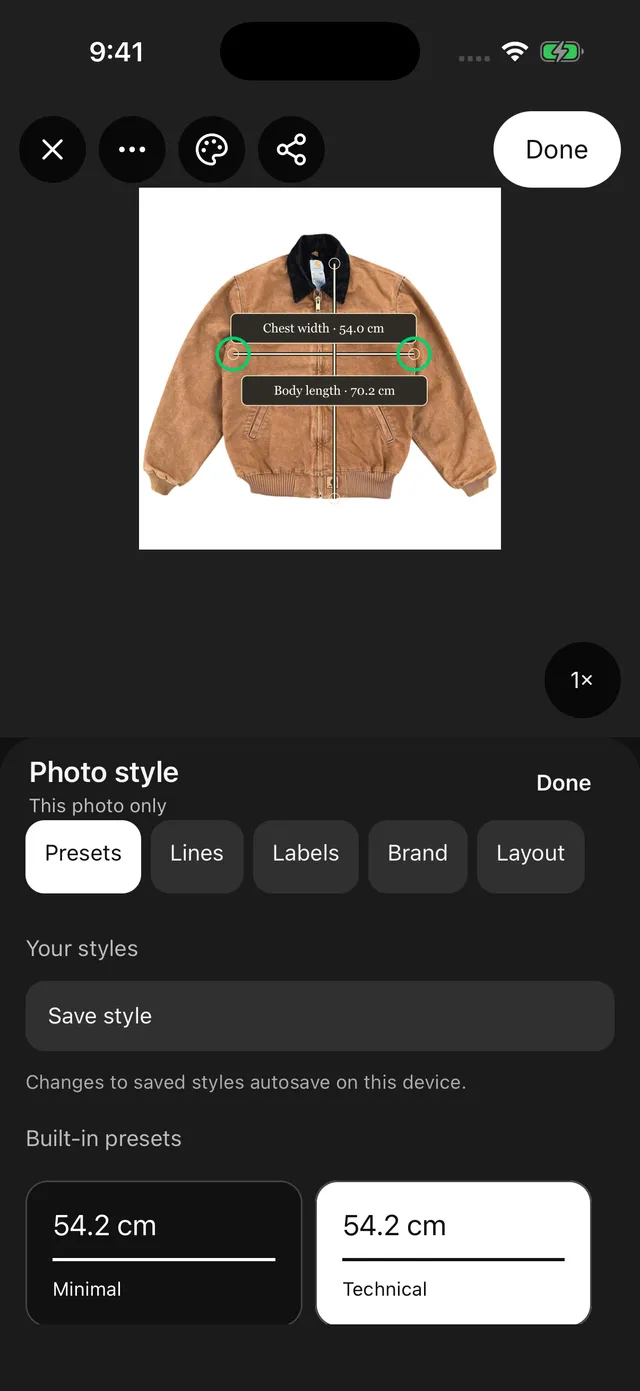
A look you can keep.
Edit it. Save it. Use it again.
Give buyers clearer size and fit context.
A clear look starts with contrast.
A fine dark line may work well on a light shirt and disappear against dark denim. Choose colours and label backgrounds that are easy to read on the item you are photographing. Preview the result at phone size, where small details are easier to miss.
Use plain dimension names and leave enough space around the labels. The style should help someone understand the measurements at a glance. A stronger font or a simpler line treatment can make the information easier to follow without covering the item.
Give buyers a clearer picture.
A size label only tells part of the story. A measurement photo shows which dimensions you recorded and where you measured them, helping buyers compare an item with something they already own and decide with more confidence.
Save the styled image to Photos or use your phone’s share sheet to send it to a compatible app. You can upload the exported JPG or PNG as a marketplace listing photo or share it in a message. Exporting an image does not publish a listing; the destination app controls how it is used.
Consistency, for one wardrobe or a whole shop.
A saved style can make a collection of measurement photos feel related. Keep a simple personal style for your wardrobe, or use a recognisable treatment for items you are preparing to sell. Optional branding can help identify the source of an image.
Save a style and use it again on your next measurement photo. Saved styles stay with the account and workspace you’re using on this device. They aren’t automatically shared with other phones.
Make it part of your day
For your kind of finding.
Keep it personal
Choose a quiet look for your wardrobe references. Use the same labels and colours when measuring another item you want to compare.
Prepare measurement photos for resale
Use a saved theme for secondhand clothing listings. Export a clear measurement photo so buyers can compare chest width or garment length with something they already wear.
Build a repeatable routine
On a charity shop’s capture device, save a clear default style so the next batch of measurement photos starts with familiar settings.
A few things to know
Measurement styles.
Good questions.
Which measurement presets are included?
Lens includes Minimal, Technical, Bold and Classic presets. You can use a preset as it is or customise it and save a new style.
What can I customise?
You can customise colours, line styles, labels, fonts and branding. Review the result on the actual photo to make sure the measurements remain readable.
Does changing the style change the measurements?
No. A style changes how the measurement artwork looks. The dimension values are separate, so you still need to review those values before saving or sharing the photo.
Can I reuse a saved style on new photos?
Yes. Save a named style and select it again, or set it as the default for new photos in the current workspace. Saved styles belong to the current account and workspace on your device.
Start with a little curiosity
Check your next find for free.
200 free price checks per calendar month. Included on the Free plan with a registered account. Paid plans include higher native app allowances. Web and app allowances are separate and reset on the 1st of each month at midnight in Melbourne.
Shopfront Lens is available on the App Store and Google Play. The native app requires a Shopfront account; create one on the web, then sign in. You can also try photo-based price checks in your browser.
Read the Lens getting-started guide