Shopfront Lens · Web & native app
Price checks.Found something?Check the asking prices.
Photograph a shopping find to see an asking-price estimate and similar listings. Compare a thrift shop, retail store or market price tag with online asking prices, or research something of your own. These are asking prices, not confirmed sales.
See how it works

Available for iOS and Android.
Make it part of your day
How do photo price checks work?
Start with a clear photo
Photograph the item so its shape, material and any branding are visible. A clear image gives Lens more information to work with. Check the identified product details before treating the returned items as a useful comparison.
Look beyond the estimate
Review the range and open the comparable listings. Compare the brand, model, condition and included accessories with your item. A similar-looking jacket in a different material or condition may be a poor comparison.
Keep the context
Save the item and its price check in the native app so you can return to it. Add condition notes and record the asking price and currency from the tag separately from the estimate. Organise the item into a collection for your next decision.
Keep the context
More context in the native app.
- Scan the tag. Then the item.
- Include a tag photo to read the price, currency and useful details such as brand or size. Lens applies its best guess automatically; you can review and edit it. Keep taking photos while checks run in the background.
- For you. Or for resale.
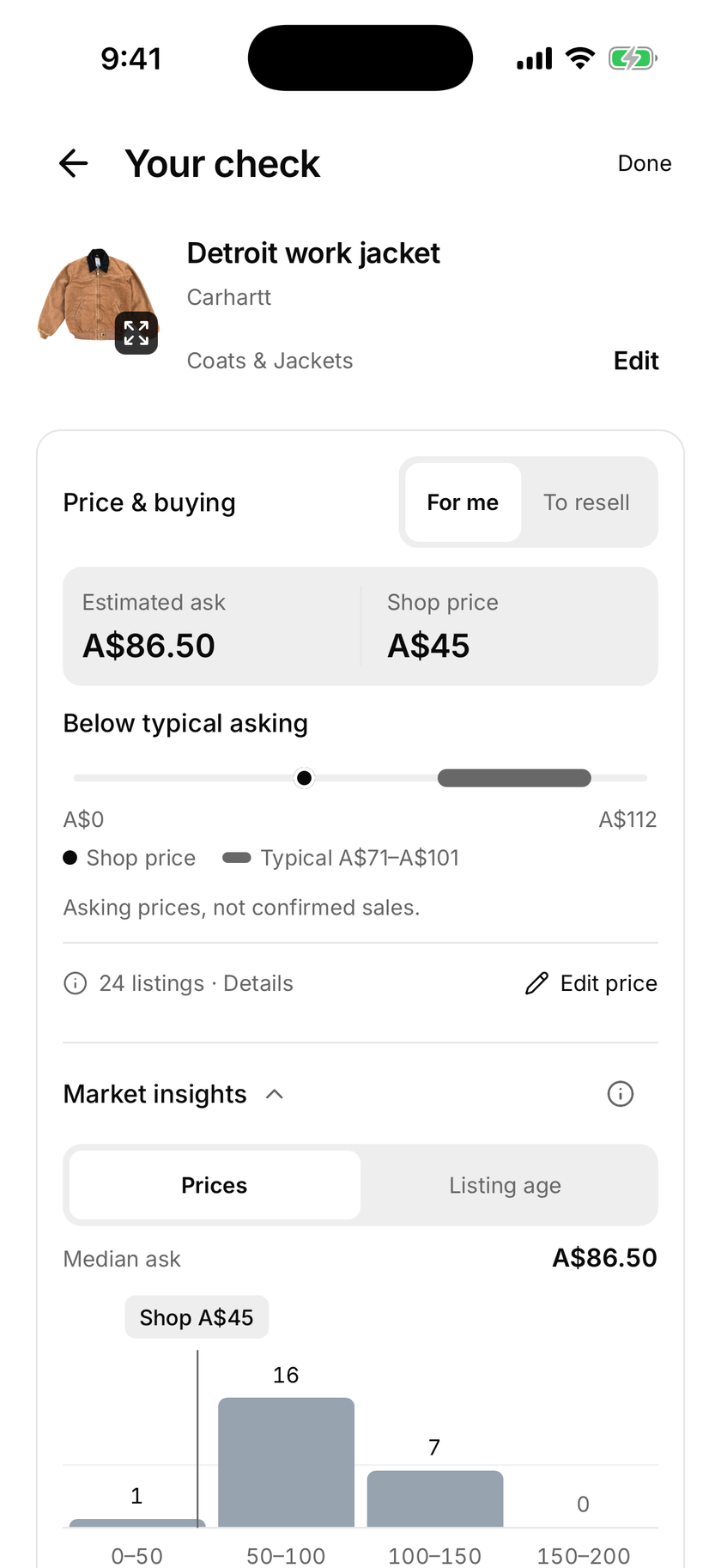
- Compare the shop price with the typical asking-price range in For me. Switch to To resell and enter a possible sale price, fees, postage and preparation costs to calculate a scenario. An estimated margin is not guaranteed profit.
- Less sorting. More finding.
- After a price check, Lens automatically suggests a category for your find. Review or change it in Edit details, then find saved items by category. Suggestions are a starting point; you stay in control.
- See the market context.
- Price bars show the spread of sampled asking prices. Listing age uses available dates to group listings by how long they have been online. This is not time to sell or a sell-through forecast. Sample size and sources stay visible; coverage varies by item and marketplace.
Read the chart, then check the listings.
Lens shows asking-price estimates and comparable listings, not confirmed sale prices. A seller can ask for an amount that buyers are unwilling to pay. Read the results as market context rather than a valuation or a promise of what your item will sell for.
Market insights combines relevant sampled listings from available marketplaces. With enough prices, the chart excludes extreme outliers by default and lets you show them again. Listing-age charts use only reliable available dates, so their sample may be smaller. Older listings do not prove low demand, and an active listing does not tell you when it will sell.
How do you check an op-shop find before buying?
Start with a clear photo of the item, then open the comparable listings behind the asking-price range. Match the brand, model, material and condition as closely as you can. Check for marks, missing parts or repairs before comparing the shop’s price tag with an online listing.
Whether you call it thrifting, op shopping or charity-shop shopping, the aim is to understand the piece before deciding. Lens supplies price context; it does not authenticate a brand or confirm what an item has sold for. Save useful finds in the native app when you want to revisit them later.
Useful even when selling isn’t the plan.
You might be comparing a thrift shop price, deciding what to keep from a wardrobe clear-out or researching an unfamiliar donation. Lens helps you gather the information in one place without turning every item into a listing.
Price checks work alongside item photos, notes and measurements in the native app. Keep a record of the find, then decide later whether to wear it, keep it, donate it or prepare it for sale.
Make it part of your day
For your kind of finding.
While thrifting or op shopping
Photograph a find before buying. Compare the asking-price range with the shop’s price tag, then check the brand, condition and details of comparable listings. A similar photo alone does not make an item a bargain.
On a retail rail or at a market
Compare the advertised price with online asking prices for similar pieces. Check whether listings describe new or used items, match the condition and currency, and keep the price on the tag as a separate record.
While sorting op-shop donations
Look up unfamiliar donations before writing the price tag. Compare similar listings and follow your charity’s pricing policy.
A few things to know
Price checks.
Good questions.
How many free price checks do I get?
200 free price checks per calendar month. Included on the Free plan with a registered account. Paid plans include higher native app allowances. Web and app allowances are separate and reset on the 1st of each month at midnight in Melbourne.
Does Lens show sold prices?
No. These Lens price checks show asking-price estimates and comparable listings. They do not confirm that an item sold for the displayed price.
Can Lens authenticate a designer item?
A photo price check is not authentication. Similar listings or a recognised brand do not establish that an item is genuine. Seek a suitable authentication service when that matters to your purchase.
Can I use price checks without downloading the app?
Yes. Lens on the web offers photo-based price checks in your browser. The iOS and Android app adds saved places, sharing, measurement photos, custom styles and collections.
Why should I open the comparable listings?
The listings help you judge whether the comparison is relevant. Look for differences in model, condition, size, material and included accessories before relying on the asking-price range.
Start with a little curiosity
Check your next find for free.
200 free price checks per calendar month. Included on the Free plan with a registered account. Paid plans include higher native app allowances. Web and app allowances are separate and reset on the 1st of each month at midnight in Melbourne.
Shopfront Lens is available on the App Store and Google Play. The native app requires a Shopfront account; create one on the web, then sign in. You can also try photo-based price checks in your browser.
Read the Lens getting-started guide